Wiki
Phasing out database encryption
From the early days of MediLog six years ago, we supported encrypted databases through a third-party encryption library. At that time, it was a vital feature for medical privacy.
However, modern Android versions now feature robust native disk encryption at the operating system level. Running a separate layer of encryption on top of the OS has become a technical burden rather than a benefit. By standardizing our storage, we can provide a faster, lighter, and more stable application while your data remains protected by Android’s own system security.
We have been automatically migrating databases to the modern format since release v3.0 of MediLog.
Why am I seeing a warning?
There may be technical reasons preventing your phone from completing the automatic migration, such as a lack of free storage or system memory. If the migration cannot complete, MediLog will display a warning banner to alert you.
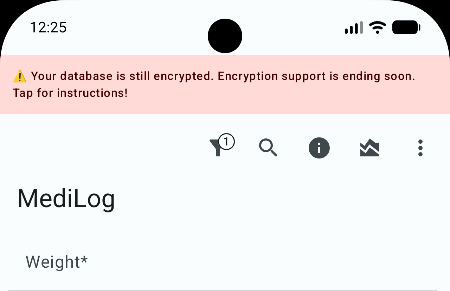
or
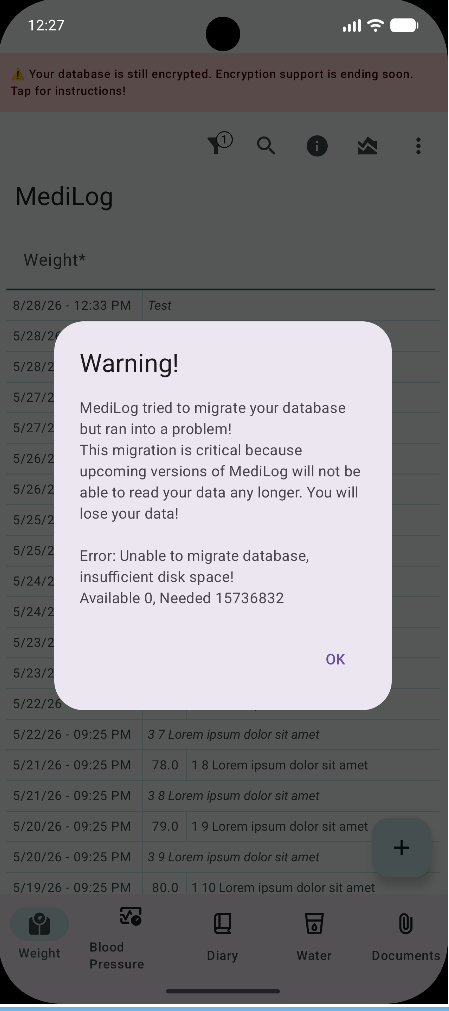
There are two ways to resolve this and ensure your data remains accessible in future versions.
Option 1: Fix the environment
MediLog will attempt to tell you exactly why the update was deferred.
- Lack of storage: MediLog needs a small amount of “breathing room” to safely rewrite the database. Please ensure you have at roughly 3x the size of your database available (the warning dialog will tell you how much is needed) and restart the app.
- Lack of memory: Close other heavy applications and restart MediLog.
Once the local issue is resolved, restarting MediLog will trigger the automatic migration. Once successful, the warnings will disappear.
Option 2: The Re-install / Move Path
If automatic migration continues to fail, you can re-install MediLog. If you happen to run the legacy (non-reproducible flavour) from F-Droid this will be the right time to switch to the new Reproducible version on F-Droid. In any case, follow these steps:
- Create a Backup: Go to the Overflow Menu (three dots) -> Data Management -> Backup.
- SAVE YOUR PASSWORD: If the app asks for a password, set one and write it down immediately or use a blank password in which case you should consider deleting your insecure backup after migration sucessfully completed. You cannot restore your data without it! If the app does not ask for a password you set a default one in settings! Check the password before deleting MediLog
- Verify: Select a folder on your phone or SD card and ensure the
.zipfile is successfully saved and can be opened.
If moving to the Reproducible F-Droid version:
- Install the Reproducible flavor of MediLog from F-Droid (it can run in parallel with your current version).
- Open the new flavor and use Restore to import your
.zipfile. - Verify your data is complete (check your records and profiles).
- Once confirmed, you may delete the legacy flavor of MediLog.
If using other sources:
- Uninstall your current MediLog app.
- Re-install MediLog from your original source.
- Use Restore to import your backup
.zipfile. - Verify that your data is complete.
The Migration Timeline
• v1.7.5 (Sept 2020): MediLog first introduced SQLCipher-based encryption. • v3.2.6 (Mid 2024): We officially deprecated SQLCipher and decided that all new databases would remain unencrypted. Legacy databases were still kept encrypted. • v3.6.0 (Dec 2025): This is the “Bridge” release where we added the automatic conversion logic (from encrypted to unencrypted) that runs during startup of the app.
If you are running a release >= v3.6.0 and don’t get a warning your database has been migrated and all is good. If you are on an older release make a backup and upgrade now to give MediLog the opportunity to migrate your database while the encryption library is still available.
Thank you for being part of the MediLog community. This change is a big step forward for the project’s longevity, performance, and transparency. If you run into any issues, please reach out via Codeberg, the Fediverse, or Email.
Stay healthy and keep logging!
